
FLOWERIST · PHOTOGRAPHY
Make a floral wallpaper that leaves room to breathe.
A wallpaper is a setting for everyday use. Your flowers can be the focal point without filling every edge. Start with an arrangement you enjoy looking at, then think about where a clock, icons or a dock will sit.
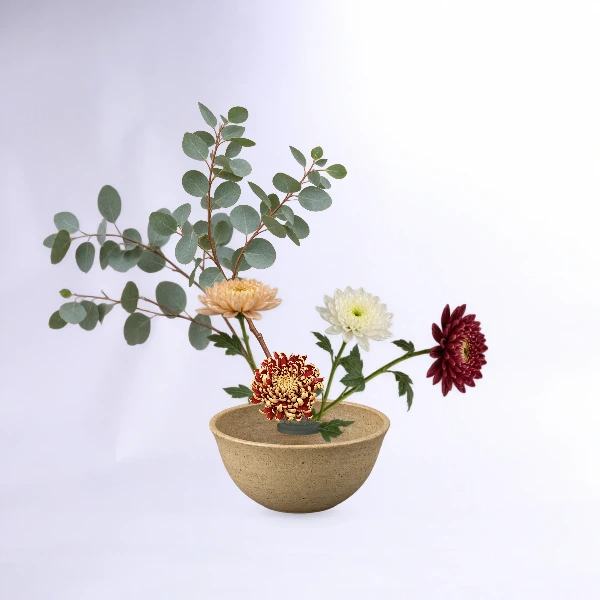
Choose the screen before the crop
A phone wallpaper uses a tall 9:16 frame; the MacBook wallpaper option uses a wide 16:9 frame. These are composition presets, not a promise to match every device’s native screen ratio. A device may crop the final image, so keep important flowers away from the outer edges.
Leave a quiet area for the interface
On a phone, try keeping the top of the image calm for the clock. On a desktop, a less busy side can leave space for icons. Negative space can be a wall, a soft shadow or a stretch of table. It does not have to be completely blank.
Describe one believable setting
Try a cream wall and a wooden table by a window, or a stone surface in a dark gallery. Keep the background description short. Then choose an atmosphere such as soft morning light or quiet dusk. Clear, compatible choices are usually more useful than a long list of camera terms.
Move from the draft to a photograph
Open Create a photo in Flowerist, select the wallpaper format and resolution, and set the background and atmosphere. Photo generation uses a paid plan or credit pack; free arranging and account saves remain available. Generated images can vary, and an AI photograph is not a physical simulation of every branch.
Check the result on your own screen
Download the delivered photo and preview it as your wallpaper. Check the clock area, edge crop and contrast behind your icons. If the layout feels cramped, return to the saved arrangement, make a variation with more space, and decide whether you want to generate another image. Each new generation uses credits.